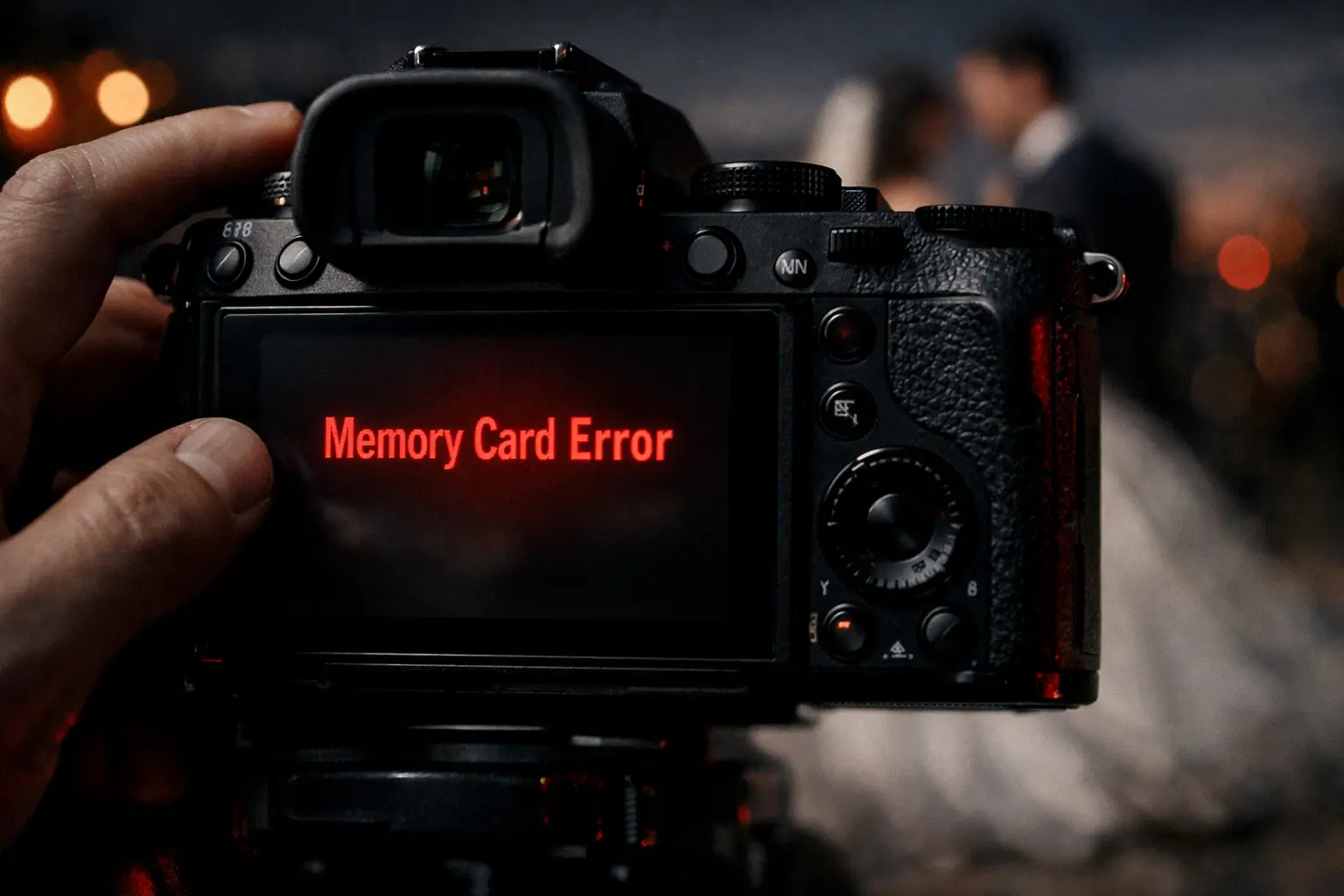
You line up the shot, press the shutter or maybe you’ve just finished capturing a moment you can’t repeat when suddenly your camera flashes “Memory Card Error.” Your heart skips. For a second, everything stops. All you can think is, Are my photos gone? Did I just lose everything? That rush of panic is completely normal. But here’s the truth most people don’t realize: in many cases, this error is temporary, and your photos are still there. You’re not alone, and you don’t need to panic. With the right steps, this problem can usually be fixed safely and that’s exactly what this guide will help you do.
First: What Does “Memory Card Error” Actually Mean?
Seeing a “Memory Card Error” message on your camera can be concerning, especially if it appears after an important shoot. While the warning looks serious, it does not always indicate permanent data loss or hardware failure. In most situations, the error is caused by temporary communication issues between the camera and the memory card, file system inconsistencies, or minor card-related problems. By following a structured and cautious troubleshooting approach, the issue can often be resolved without losing your photos. This article explains each step clearly to help you diagnose and fix the problem safely.
This message does not always mean your card is destroyed.
It usually means your camera can’t properly read the card at that moment. That can happen because of:
-
File system issues
-
Improper removal
-
Card corruption
-
Compatibility problems
-
Dirty or damaged contacts
Let’s fix it the safe way, starting with the least risky steps.
Also Read: Camera Not Focusing? 7 Real Reasons & Solutions (Fix It in Minutes)
Step 1: Do NOT Format the Card (Yet)
Your camera may suggest:
“Format card?”
Do not press YES immediately.
Formatting can erase everything. We’ll only consider it after trying safer options.
Step 2: Turn Off the Camera & Reinsert the Card
Simple, but surprisingly effective.
-
Turn off the camera completely
-
Remove the memory card
-
Wait 10–15 seconds
-
Reinsert it carefully
-
Turn the camera back on
👉 This clears temporary reading errors caused by static or power glitches.
If the error disappears—great.
If not, continue.
Step 3: Check the Card Lock Switch (Very Common Mistake)
SD cards have a tiny lock switch on the side.
-
If it’s slid down, the card becomes read-only
-
Many cameras show this as a memory card error
Slide it up, reinsert the card, and try again.
Step 4: Clean the Memory Card (Safely)
Dust or oil can block proper contact.
What to do:
-
Use a soft dry cloth
-
Gently wipe the gold contacts
-
Do not use water or liquid cleaners
-
Do not scratch the contacts
Reinsert and test.
Step 5: Try the Card in Another Device
This step tells you where the problem really is.
Insert the card into:
-
Another camera
-
A card reader
-
Your laptop or PC
Possible results:
-
✅ Card works elsewhere → camera slot may be the issue
-
❌ Card doesn’t work anywhere → card is likely corrupted
If your computer can read it, copy all files immediately.
Step 6: Use Your Computer’s “Repair” Option
If your computer detects the card but shows an error:
-
On Windows:
You may see “Scan and fix” → Click it -
On Mac:
Use Disk Utility → First Aid
This can fix file system issues without deleting photos.
Step 7: Format the Card (Only After Backup)
If:
-
Files are already backed up or
-
The card is empty or
-
Nothing else worked
Then formatting is the last safe option.
Important rule:
👉 Always format inside the camera, not on a computer.
This ensures proper compatibility with your camera system.
When Is the Card Permanently Damaged?
Unfortunately, some cards do fail.
Signs include:
-
Card not detected on any device
-
Repeated errors after formatting
-
Physical cracks or bent shape
If this happens:
-
Do not trust the card again for important work
-
Use it only for testing—or discard it
Memory cards are consumables. They don’t last forever.
How to Prevent Memory Card Errors in the Future
A few habits can save you a lot of stress:
-
Always format the card in-camera
-
Don’t remove the card while the camera is ON
-
Avoid cheap, unknown brand cards
-
Replace cards after heavy long-term use
-
Keep cards in a case, not loose in pockets
Final Words: Don’t Panic—Most Errors Are Fixable
A memory card error feels scary—but in reality:
✔ Most cases are temporary
✔ Photos are often recoverable
✔ The camera itself is usually fine
Follow the steps calmly, in order, and you’ll solve the problem safely.
If you want more real-world camera problem solutions like this, keep visiting camerapricebd.com—we write for real photographers, real problems, and real fixes.